 I had a fantastic time delivering the webinar on Getting Started with MVVM in WPF & Silverlight.
Here’s the detailed post on my Infragistics blog. You will find the links to download the samples and slides.
-Nish-

I had a fantastic time delivering the webinar on Getting Started with MVVM in WPF & Silverlight.
Here’s the detailed post on my Infragistics blog. You will find the links to download the samples and slides.
-Nish-
I was under an assumption that ObservableCollection<T> works perfect with WPF DataGrid until my friend wannabeegeek came up with a strange problem. The problem was making ObservableCollection<T> update the ItemSource on fly while editing them. What’s the big deal right? Wrong.
If you are using MVVM you do not want to wire up the event on DataGrid for an updated source. You will very much think that as long as you bind the collection to the ViewModel’s property and the mode is set to TwoWay – the source is updated automatically when items are edited in the DataGrid.
Your ViewModel will fire the property changed when the collection itself changes – that is if you replace the property itself. So if you want to know the change in items of the collection you need to subscribe to the CollectionChanged event of the ObservableCollection<T> property in your ViewModel.
MSDN says:
Occurs when an item is added, removed, changed, moved, or the entire list is refreshed.
But there is a problem with ObservableCollection.CollectionChanged event – it does not fire when your data item’s property changes. It fires only if the entire item is replaced. That is if you have a collection of an Entity “Expense” that has properties “Name” and “Amount” and if you simply change the Amount value in the grid it does not work! You need to replace the entire “Expense” object for you to see the collection change firing up.
After googling and reading msdn forums I gave up on ObservableCollection<T> and picked up BindingList<T> to do the job. Here is a demo that explains all the stuff:
.. and the screen shot:

I have a DataGrid that is simply bound to an “BindingList<Expense>”. Right below that I have a Total that is bound to the “TotalExpense” property. Now here is what I wanted to do – Whenever user edits the amount in the Grid the Total should be calculated as he/she tabs out.
.. and the ViewModel with the solution:
The TotalExpense getter simply calculates the sum. And the ListChanged event of Expenses property simply notifies the change in TotalExpense.
.. and in the View:
That’s it!
Download the full code here. The code contains a tiny MVVM framework(inside core folder). – Read the disclaimer of the blog before you play with my code.
If you know to achieve this exact behavior with ObservableCollection do make a comment to this post and let me know!
/*Nish*/
When you think of MVVM and other patterns involved, it is often about separation of concerns as much as possible, unit testability and code maintainability. These type of patterns help in high quality of code and efficient development of business functionality. If you are new to MVVM then you may want to check out some of the articles by various intellects like Josh Smith, Laurent Bugnion and few others from XAML Disciples group(or just Google  ).
).
There are lot many frameworks on MVVM out there and to be frank there isn’t any right or the wrong one. You need to evaluate and decide on the one that fits your need! Most often people land up writing one on their own and in a way it is good!
I personally like a framework written by Brette Esterbrooks because it is a skeleton of code that you need and helps you get started. I tweaked it a bit(basically removed the ones that I don’t need) and thus the sample attached on this blog will have a tiny little framework of MVVM.
All it has is just a few helper classes:
Attached behavior is achieved by simply attaching a behavior to a control that otherwise wouldn’t have anything of its own.
And as per Josh Smith-
The idea is that you set an attached property on an element so that you can gain access to the element from the class that exposes the attached property. Once that class has access to the element, it can hook events on it and, in response to those events firing, make the element do things that it normally would not do. It is a very convenient alternative to creating and using subclasses, and is very XAML-friendly.
Ever since I am hooked to MVVM pattern, I try and avoid all the code that usually goes to the code behind. For e.g. a click event handler usually written in the code behind can be omitted and a RelayCommand in the ViewModel be used instead.
But what would happen if you want to handle a double click or a focus event of a control? Just retaining those kind of events to the code behind defeats the pattern itself. And thus Attached Behavior comes to rescue! Demo included in this post explains the DragDropBehavior.
Before you go further with this approach, I just want you to know that you can achieve this by Behavior<T> class included in the system.windows.interactivity.dll. However this dll is available only through Expression Blend installation.
In my demo I have explained both of the implementation and it’s usage. Here we go!

The view models can hold the reference of this contract and change at runtime if needed:
A static class AttachedBehavior is introduced which holds the attached properties “Behavior” and “IsEnabled”.
When toggled from Enabled state to Disabled State – OnDisabling() method of the IBehavior is called. Use this method to unwire your event handlers.
DragDropBehavior class implements the IBehavior. Have a look at the OnEnabled and OnDisabling methods.
Attach is the behavior to the control that you want to drag:
And finally the ViewModel that set’s the DragDropBehavior:
That’s It – you are done!! Refer DragDropBehavior2 class for implementation using Behavior<T>.
Download the Code – Read the Disclaimer of this blog before you work with this code!
/*Nish*/
Ever wondered how to get a IE like look and feel of the xml in the default WPF web browser control? If your answer is – “Just navigate the Web Browser to the xml path”; You are right! But if you have to navigate to a in-memory xml? Read on to know and apply IE like styling for xml stored in a string variable.
Idea of writing a custom based xml browser control came in because I had a requirement to edit the xml on fly and validate it against a specified schema. User is allowed to edit only the standard xml(compiled as an embedded resource) that the tool provides and not navigate to any path.
This control helps you:
Before I go further, here is what you get:
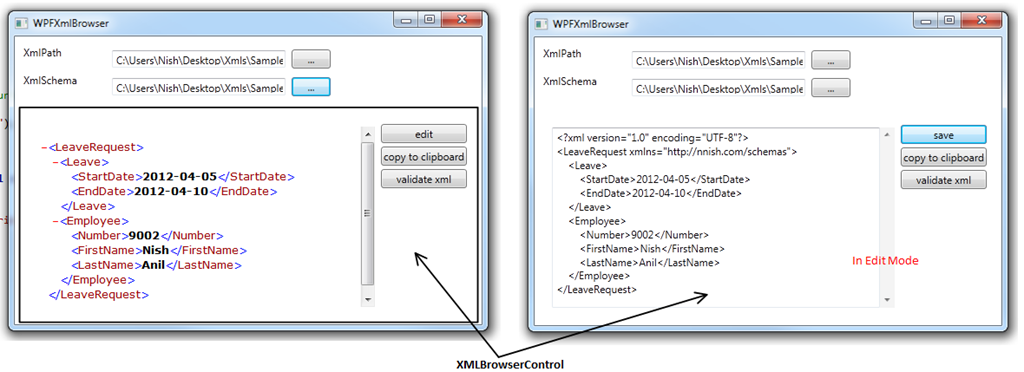
The problem with web browser when navigating to a string is that it does not load the style for it. Hence the work around is to transform the xml and navigate to it. To do so you need the Xslt that IE uses. After googling for “xml pretty print”, I finally got one originally written by Jonathan Marsh of Microsoft for IE5 and modified by Steve Muench for conversion to XSLT 1.0 REC. Copy the xml from here.
And here is the code to transform it:
var xmlDocument = new XmlDocument();
var xmlDocStyled = new StringBuilder(2500);
// mark of web – to enable IE to force webpages to run in the security zone of the location the page was saved from
// http://msdn.microsoft.com/en-us/library/ms537628(v=vs.85).aspx
xmlDocStyled.Append("<!– saved from url=(0014)about:internet –>");
var xslt = new XslCompiledTransform();
//TODO: Do not forget to change the namespace, if you move the xsl sheet to your application
var xsltFileStream =
typeof(XmlBrowserControl).Assembly.GetManifestResourceStream(
"WPFXmlBrowser.Controls.XmlBrowser.Resources.xml-pretty-print.xsl");
if (xsltFileStream != null)
{
//Load the xsltFile
var xmlReader = XmlReader.Create(xsltFileStream);
xslt.Load(xmlReader);
var settings = new XmlWriterSettings();
// writer for transformation
var writer = XmlWriter.Create(xmlDocStyled, settings);
if (xmlString != null) xmlDocument.LoadXml(xmlString);
xslt.Transform(xmlDocument, writer);
}
browserControl.EditText.Text = xmlString;
browserControl.WebBrowser.NavigateToString(xmlDocStyled.ToString());
browserControl.EditButton.Visibility = System.Windows.Visibility.Visible;
browserControl.CopyClipButton.Visibility = System.Windows.Visibility.Visible;
}
catch (Exception ex)
{
browserControl.WebBrowser.NavigateToString("Unable to parse xml. Correct the following errors: " + ex.Message);
}
}
XSLT is provided as an embedded resource and it is loaded from the code. If you are moving the xslt to your project, make sure to change the namespace in the calling code.

You can download the code from my share here. This code works on my machine!
Feel free to modify the code, but as usual you don’t get warranty!
/*Nish*/
I am sure most of you would have run into this issue before. When you try to access a WPF control on a different thread other than your regular UI thread you get a runtime exception “The calling thread cannot access this object because a different thread owns it.”. To understand why this happens, it is important to know that WPF applications run on two different threads – one for rendering the controls and the other to manage the user interface. The rendering thread runs in the background and the thread which is visible for us to work on is the UI thread. And hence most of the objects are tied to the UI thread and this is known as thread affinity. Thread affinity is handled by the Dispatcher. Each user interface related work item is channeled through the Dispatcher class, that means every work item is queued by the UI thread in an object called Dispatcher. Dispatcher runs the work items on priority basis. Supporting work item prioritization allow WPF to work on a an item for more time and hence more time is consumed on the UI thread. UI thread will have at least one Dispatcher, and each Dispatcher can execute work items in exactly one thread. So it is important to release the work item from the thread as fast as possible so as to increase the UI responsiveness. To keep the work item small, I spawned newer threads and executed the discrete blocks of code on these threads. This is exactly where I ran into the exception stated above (when I tried to access the WPF control).
So here is how I got the exception:
So how to get rid of this?
Now we know why a background running thread cannot access the UI thread. To get rid of this problem it is pretty simple – “Just ask the UI thread to do it for you”. Yes the background thread can request the UI thread to update the control properties on behalf of it. This is achieved by calling the Invoke or the BeginInvoke method of the DispatcherObject class. This will register the work items to the Dispatcher. Invoke is a synchronous call – that is, it doesn’t return until the UI thread actually finishes executing the delegate. BeginInvoke is asynchronous and returns immediately. So as stated above Dispatcher orders work items by priority and hence you can pass the priority using DispatcherPriority enumerator while registering the work item to Dispatcher.
So here is the code below which solved my problem:
private static void SetValue(TextBlock txt)
{
txt.Text = "HI";
}
In the Dispatcher.Invoke() method used above takes three parameters – DispatcherPriority Enum, Delegate to execute the code and the parameter object. I used the Action<T> generic type to pass the control to the method to set its property.
It is suggested to use the setting of the control properties in the UI thread itself, and only move those code like say calculations to another thread. This will provide a better code maintenance.
However in the above example we do not improve the UI responsiveness, as the Invoke() method is called synchronously. Instead use BeginInvoke() method. My intention was to give an insight of the exception – why, and how to deal with it. If you need details on writing better responsive applications refer Shawn Wildermuth’s article
Wow another weekend in research -Cheers!
Loading an animated gif into WPF has been a challenge since the version 1 release. WPF does not support loading an animated gifs directly into an declarative <Image> or by code, and hence developers have come out with various workarounds. Some use a raw technique – writing few lines of code which extracts the frames of the GIF and animate them. One other way to do is using the <MediaElement> FrameworkElement which is in the namespace System.Windows.Controls. <MediaElement> wraps the MediaPlayer class for declarative use and hence it supports both audio and video files. Using MediaElement you can load the animated gif the following way:
Remember it is important to use “file://” and an absolute path for loading the gif. So you cannot embed the image to a resource file and now you know one of the limitations of it. Every approach does have advantages and limitations of its own, its important to use the right approach based on the project needs.
Another possible way is by making the working Jack do the trick – Yeah I meant lets go back to Win Forms picture box to do the magic. We know PictureBox seamlessly loaded the animated gifs in Win Form days. Wait a minute did I say lets change the project from WPF to Win Forms? No I didn’t. What I said is lets integrate the PictureBox alone to the WPF project. To use the right word, I should say that we need to host the Windows Forms Control in WPF. To host a Windows Forms Control you need to make use of the class WindowsFormsHost which appears in the System.Windows.Forms.Integration namespace in assembly WindowsFormsIntegration.dll.
Lets get to the code. The first step to do is add a reference to System.Windows.Forms.dll and WindowsFormsIntegration.dll to your WPF based project.

Add the following namespaces to your XAML Code.
Now you can host the PictureBox inside the WindowsFormsHost and set its Name.
In your code behind(Window1.xaml.cs), add this code to the Window_Loaded Event:
Key points before execution:
Since Windows Forms has several interesting built in controls that WPF lacks, using this technique you can make your favorite Windows Forms control work in WPF.
Cheers!
Everyone who get introduced to Windows Presentation Foundation(WPF) are familiar with this term. But lot many get confused on it or never get what it is. I will try and make this post very simple so that it is easier to understand. My intentions are not to provide the complete technical stuff behind the Dependency property, but to keep things simple to understand and to get started. You should probably work on this lot many times to understand it better.
If you are not new to .net or any other OOP language, you are not new to Property. Dependency property was introduced in .net 3.0 and it is all together new implementation of normal properties. Dependency property differ in terms of its storage mechanism, it uses Sparse Storage and its implementation saves per-instance memory compared to a typical .NET property. However benefits of dependency property is more than just storage. One of the significances of Dependency property is its support for notification change – that means any change in the value of the property is notified down the element tree in WPF. This point particularly becomes very important to understand this.
Before I completely get on with Dependency property, let me give a gist of what attached property is. Let me explain this in a way a lay man understands: Consider a “<Canvas></Canvas>” element in your XAML. Now if you want to add a child element “<TextBlock>” to it, how do you place them in the canvas? – Here it is:
<Canvas>
<TextBlock Canvas.Top=”100″ Canvas.Left=”100″ Text=”Hello World”/>
</Canvas>
OR an example with a Grid
<Grid>
<Grid.ColumnDefinitions>
<ColumnDefinition/>
<ColumnDefinition/>
</Grid.ColumnDefinitions>
<Grid.RowDefinitions>
<RowDefinition/>
<RowDefinition/>
</Grid.RowDefinitions>
<TextBlock Grid.Column=”0″ Grid.Row=”0″ Text=”Hello World 1″/>
<TextBlock Grid.Column=”1″ Grid.Row=”0″ Text=”Hello World 2″/>
<TextBlock Grid.Column=”0″ Grid.Row=”1″ Text=”Hello World 3″/>
<TextBlock Grid.Column=”1″ Grid.Row=”1″ Text=”Hello World 4″/>
</Grid>
So what we do is we set the Canvas’s Top and Left property in the TextBlock child element or even the Grid’s Column and Row property in the child elements. This is achieved using attached property.
So here is the MSDN explanation: “An attached property is intended to be used as a type of global property that is settable on any object. One purpose of an attached property is to allow different child elements to specify unique values for a property that is actually defined in a parent element.”
In the above example, we see the property element of a parent is changed by the child, and the same gets reflected throughout the child elements. I have explained this so that you don’t confuse attached property with dependency property.
Let us extend couple of lines of code more and now understand dependency property.
And here it is:
<Canvas>
<Slider Canvas.Top=”10″ Canvas.Left=”10″ Name=”MySlider” Minimum=”10″ Maximum=”1000″ Ticks=”100″ Width=”300″/>
<Ellipse Canvas.Top=”130″ Canvas.Left=”150″ Width=”{Binding ElementName=MySlider, Path=Value}” Height=”{Binding ElementName=MySlider, Path=Value}” Fill=”Red”/>
</Canvas>
The output of the above example is: When the slider is moved, automatically the ellipse gets larger or smaller based on the value of the slider. So what we understand from this is without writing event handlers or any code behind to handle the slider movement and the ellipse height and width setters – we achieve this. This is because the property “Value” of the slider is a dependency property and it notifies the change to all the elements in the XAML, and since the Ellipse’s width and height are bound to the “Slider.Value” it automatically reflects the change.
This was just an introduction, there are couple of more things I want to cover like – creating your own dependency properties for the custom controls etc, which will be updated in the next post.
Cheers!
