Archive

Archive for the ‘C#’ Category

Attached Behaviors & MVVM

April 22, 2012 Leave a comment

When you think of MVVM and other patterns involved, it is often about separation of concerns as much as possible, unit testability and code maintainability. These type of patterns help in high quality of code and efficient development of business functionality. If you are new to MVVM then you may want to check out some of the articles by various intellects like Josh Smith, Laurent Bugnion and few others from XAML Disciples group(or just Google Smile).

There are lot many frameworks on MVVM out there and to be frank there isn’t any right or the wrong one. You need to evaluate and decide on the one that fits your need! Most often people land up writing one on their own and in a way it is good!

I personally like a framework written by Brette Esterbrooks because it is a skeleton of code that you need and helps you get started. I tweaked it a bit(basically removed the ones that I don’t need) and thus the sample attached on this blog will have a tiny little framework of MVVM.

All it has is just a few helper classes:

  1. ViewBase,
  2. ViewModelBase,
  3. RelayCommand,
  4. ObservableObject.

Attached Behaviors


Attached behavior is achieved by simply attaching a behavior to a control that otherwise wouldn’t have anything of its own.

And as per Josh Smith-

The idea is that you set an attached property on an element so that you can gain access to the element from the class that exposes the attached property. Once that class has access to the element, it can hook events on it and, in response to those events firing, make the element do things that it normally would not do. It is a very convenient alternative to creating and using subclasses, and is very XAML-friendly.

Ever since I am hooked to MVVM pattern, I try and avoid all the code that usually goes to the code behind. For e.g. a click event handler usually written in the code behind can be omitted and a RelayCommand in the ViewModel be used instead.

But what would happen if you want to handle a double click or a focus event of a control? Just retaining those kind of events to the code behind defeats the pattern itself. And thus Attached Behavior comes to rescue! Demo included in this post explains the DragDropBehavior.

Before you go further with this approach, I just want you to know that you can achieve this by Behavior<T> class included in the system.windows.interactivity.dll. However this dll is available only through Expression Blend installation.

In my demo I have explained both of the implementation and it’s usage. Here we go!

Screenshot of the Demo:


AttachedBImage


IBehavior


The view models can hold the reference of this contract and change at runtime if needed:

  1. public interface IBehavior
  2.     {
  3.         void OnEnabled(DependencyObject dependencyObject);
  4.         void OnDisabling(DependencyObject dependencyObject);
  5.     }


AttachedBehavior – A static class!


A static class AttachedBehavior is introduced which holds the attached properties “Behavior” and “IsEnabled”.

When toggled from Enabled state to Disabled State – OnDisabling() method of the IBehavior is called. Use this method to unwire your event handlers.


  1. /// <summary>
  2.         /// Attach a Behavior of type IBehavior
  3.         /// </summary>
  4.         public static readonly DependencyProperty BehaviorProperty = DependencyProperty.RegisterAttached("Behavior", typeof(IBehavior), typeof(AttachedBehavior), new UIPropertyMetadata(null));
  5.  
  6.         /// <summary>
  7.         /// Is Enabled, when set to true, fires Behaviors OnEnabled Method
  8.         /// </summary>
  9.         public static readonly DependencyProperty IsEnabledProperty = DependencyProperty.RegisterAttached("IsEnabled", typeof(bool), typeof(AttachedBehavior), new UIPropertyMetadata(false, OnIsEnabledChanged));
  10.  
  11.         /// <summary>
  12.         /// Handles IsEnabledChanged
  13.         /// </summary>
  14.         /// <param name="d"></param>
  15.         /// <param name="e"></param>
  16.         private static void OnIsEnabledChanged(DependencyObject d, DependencyPropertyChangedEventArgs e)
  17.         {
  18.             if (d == null)
  19.                 return;
  20.             var behavior = GetBehavior(d);
  21.             if (behavior == null)
  22.                 return;
  23.             if ((bool)e.NewValue)
  24.                 behavior.OnEnabled(d);
  25.             else
  26.                 behavior.OnDisabling(d);
  27.         }


DragDropBehavior Class


DragDropBehavior class implements the IBehavior. Have a look at the OnEnabled and OnDisabling methods.

  1. public class DragDropBehavior : IBehavior
  2.     {
  3.         #region Private Fields
  4.         private Point _startPosition;
  5.         private Point _mouseStartPosition;
  6.         private TranslateTransform _translatetransform;
  7.         private UIElement _associatedObject = null;
  8.         private Window _parent = null;
  9.         #endregion
  10.  
  11.         #region IBehavior Members
  12.         public void OnEnabled(DependencyObject dependencyObject)
  13.         {
  14.             var uiElement = dependencyObject as UIElement;
  15.             if (uiElement == null)
  16.                 return;
  17.             
  18.             _associatedObject = uiElement;
  19.             //TODO: set the parent accordingly
  20.              _parent = Application.Current.MainWindow;
  21.             _translatetransform = new TranslateTransform();
  22.             _associatedObject.RenderTransform = _translatetransform;
  23.             _associatedObject.MouseLeftButtonDown += AssociatedObjectMouseLeftButtonDown;
  24.             _associatedObject.MouseLeftButtonUp += AssociatedObjectMouseLeftButtonUp;
  25.             _associatedObject.MouseMove += AssociatedObjectMouseMove;
  26.         }
  27.         
  28.         public void OnDisabling(DependencyObject dependencyObject)
  29.         {
  30.             _associatedObject.MouseLeftButtonDown -= AssociatedObjectMouseLeftButtonDown;
  31.             _associatedObject.MouseLeftButtonUp -= AssociatedObjectMouseLeftButtonUp;
  32.             _associatedObject.MouseMove -= AssociatedObjectMouseMove;
  33.             _translatetransform = null;
  34.         }
  35.         #endregion
  36.  
  37.         #region Event Handlers
  38.         void AssociatedObjectMouseLeftButtonDown(object sender, System.Windows.Input.MouseButtonEventArgs e)
  39.         {
  40.             _startPosition = _associatedObject.TranslatePoint(new Point(), _parent);
  41.             _mouseStartPosition = e.GetPosition(_parent);
  42.             _associatedObject.CaptureMouse();
  43.         }
  44.         
  45.         void AssociatedObjectMouseMove(object sender, System.Windows.Input.MouseEventArgs e)
  46.         {
  47.             var positionDifference = e.GetPosition(_parent) – _mouseStartPosition;
  48.             if(_associatedObject.IsMouseCaptured)
  49.             {
  50.                 _translatetransform.X = positionDifference.X;
  51.                 _translatetransform.Y = positionDifference.Y;
  52.             }
  53.         }
  54.  
  55.         void AssociatedObjectMouseLeftButtonUp(object sender, System.Windows.Input.MouseButtonEventArgs e)
  56.         {
  57.             _associatedObject.ReleaseMouseCapture();
  58.             
  59.         }
  60.         
  61.         #endregion
  62.  
  63.  
  64.     }


HelloView


Attach is the behavior to the control that you want to drag:

  1. <ToggleButton Name="dragDropToggleButton" Command="{Binding ToggleDragDropBehavior}" Width="200">
  2.                 <ToggleButton.Style>
  3.                     <Style TargetType="{x:Type ToggleButton}">
  4.                         <Setter Property="Content" Value="Start Dragging"/>
  5.                         <Style.Triggers>
  6.                             <Trigger Property="IsChecked" Value="True">
  7.                                 <Setter Property="Content" Value="Stop Dragging"/>
  8.                             </Trigger>
  9.                         </Style.Triggers>
  10.                     </Style>
  11.                 </ToggleButton.Style>
  12.             </ToggleButton>
  13.  
  14.  
  15.    
  16.               <TextBlock Background="Gold"
  17.                        Text="dragMe using attached behavior"
  18.                        Behaviors:AttachedBehavior.IsEnabled="{Binding IsDragBehaviorEnabled}"
  19.                        Behaviors:AttachedBehavior.Behavior="{Binding DragDropBehavior}"
  20.                        Canvas.Left="32"
  21.                        Canvas.Top="31" />


HelloViewViewModel


And finally the ViewModel that set’s the DragDropBehavior:

  1. public class HelloViewViewModel : ViewModelBase
  2.     {
  3.         private IBehavior _dragDropBehavior;
  4.         private bool _isDragBehaviorEnabled;
  5.  
  6.         public bool IsDragBehaviorEnabled
  7.         {
  8.             get { return _isDragBehaviorEnabled; }
  9.             set { _isDragBehaviorEnabled = value; RaisePropertyChanged(()=> this.IsDragBehaviorEnabled); }
  10.         }
  11.  
  12.         public IBehavior DragDropBehavior
  13.         {
  14.             get { return _dragDropBehavior; }
  15.             set { _dragDropBehavior = value; RaisePropertyChanged(() => this.DragDropBehavior); }
  16.         }
  17.  
  18.         public RelayCommand ToggleDragDropBehavior { get; set; }
  19.  
  20.         public HelloViewViewModel()
  21.         {
  22.             DragDropBehavior = new DragDropBehavior();
  23.             ToggleDragDropBehavior = new RelayCommand(() =>
  24.             {
  25.                 IsDragBehaviorEnabled = !IsDragBehaviorEnabled;
  26.             });
  27.  
  28.         }
  29.     }


That’s It – you are done!! Refer DragDropBehavior2 class for implementation using Behavior<T>.

Download the Code – Read the Disclaimer of this blog before you work with this code!

/*Nish*/

Categories: C#, MVVM, WPF Tags: ,

WPF XML Browser Control

April 12, 2012 Leave a comment

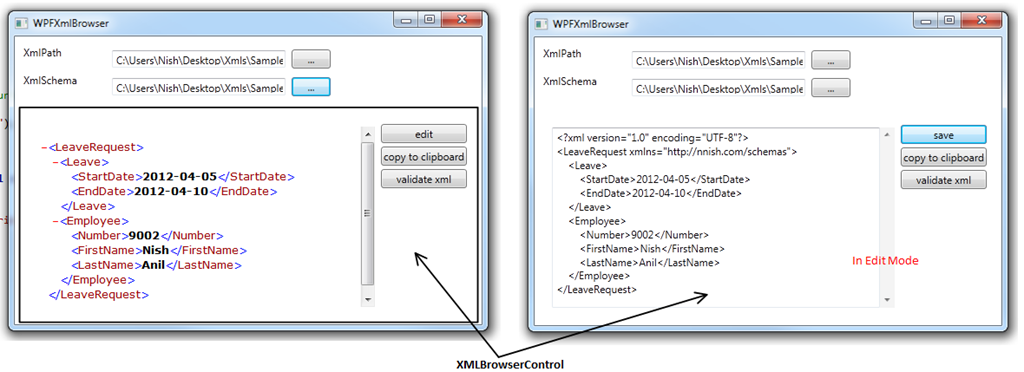
Ever wondered how to get a IE like look and feel of the xml in the default WPF web browser control? If your answer is – “Just navigate the Web Browser to the xml path”; You are right! But if you have to navigate to a in-memory xml? Read on to know and apply IE like styling for xml stored in a string variable.

Idea of writing a custom based xml browser control came in because I had a requirement to edit the xml on fly and validate it against a specified schema. User is allowed to edit only the standard xml(compiled as an embedded resource) that the tool provides and not navigate to any path.

This control helps you:

  1. Load the xml from the string and apply IE like styling
  2. Edit the xml
  3. Validate the xml against the defined schema

Before I go further, here is what you get:

image

The problem with web browser when navigating to a string is that it does not load the style for it. Hence the work around is to transform the xml and navigate to it. To do so you need the Xslt that IE uses. After googling for “xml pretty print”, I finally got one originally written by Jonathan Marsh of Microsoft for IE5 and modified by Steve Muench for conversion to XSLT 1.0 REC.  Copy the xml from here.

And here is the code to transform it:

/// <summary>
        /// Executes when XmlDoc DP is changed, Loads the xml and tranforms it using XSL provided
        /// </summary>
        /// <param name="d"></param>
        /// <param name="e"></param>
        public static void OnXmlDocChanged(DependencyObject d, DependencyPropertyChangedEventArgs e)
        {
            var browserControl = d as XmlBrowserControl;
            if (browserControl == null) return;
            var xmlString = e.NewValue as string;
            
            try
            {

                var xmlDocument = new XmlDocument();

                var xmlDocStyled = new StringBuilder(2500);
                // mark of web – to enable IE to force webpages to run in the security zone of the location the page was saved from
                // http://msdn.microsoft.com/en-us/library/ms537628(v=vs.85).aspx
                xmlDocStyled.Append("<!– saved from url=(0014)about:internet –>");

                var xslt = new XslCompiledTransform();
                //TODO: Do not forget to change the namespace, if you move the xsl sheet to your application
                var xsltFileStream =
                    typeof(XmlBrowserControl).Assembly.GetManifestResourceStream(
                        "WPFXmlBrowser.Controls.XmlBrowser.Resources.xml-pretty-print.xsl");
                if (xsltFileStream != null)
                {
                    //Load the xsltFile
                    var xmlReader = XmlReader.Create(xsltFileStream);
                    xslt.Load(xmlReader);
                    var settings = new XmlWriterSettings();
                    // writer for transformation
                    var writer = XmlWriter.Create(xmlDocStyled, settings);
                    if (xmlString != null) xmlDocument.LoadXml(xmlString);
                    xslt.Transform(xmlDocument, writer);

                }

                browserControl.EditText.Text = xmlString;
                browserControl.WebBrowser.NavigateToString(xmlDocStyled.ToString());
                browserControl.EditButton.Visibility = System.Windows.Visibility.Visible;
                browserControl.CopyClipButton.Visibility = System.Windows.Visibility.Visible;
            }
            catch (Exception ex)
            {
                browserControl.WebBrowser.NavigateToString("Unable to parse xml. Correct the following errors: " + ex.Message);
            }
        }


XSLT is provided as an embedded resource and it is loaded from the code. If you are moving the xslt to your project, make sure to change the namespace in the calling code.

image

You can download the code from my share here. This code works on my machine!

Feel free to modify the code, but as usual you don’t get warranty!

/*Nish*/

Categories: C#, WPF Tags: , ,

Have an operation to measure? Use Stopwatch()

October 20, 2010 2 comments

Quite often we run into situations where we need to measure the elapsed time of a method/operation, and there are number of ways to do it. The simplest way to do is by using a Stopwatch. This class is available under the namespace System.Diagnostics.

To show you a demo, I have used a simple app which calculates the time taken to load a website on your local machine.

namespace Nish.Stopwatch
{
    class Program
    {
        static void Main(string[] args)
        {
            Console.WriteLine("WebAddress> ");
            Console.WriteLine("Your website took about " + LoadWebsite(Console.ReadLine()).Seconds + " seconds to load on your machine");
            Console.ReadLine();
        }

        /// <summary>
        /// Gets the load time of a website
        /// </summary>
        /// <param name="websitePath">Path in the format: e.g. http://nnish.com </param>
        /// <returns>Time taken</returns>
        private static TimeSpan LoadWebsite(string websitePath)
        {
            System.Diagnostics.Stopwatch stpWatch = new System.Diagnostics.Stopwatch();
            stpWatch.Start();
            HttpWebRequest request = (HttpWebRequest)WebRequest.Create(websitePath);

            // execute the request
            HttpWebResponse response = (HttpWebResponse)request.GetResponse();

            // Read the data in the stream
            StreamReader streamReader = new StreamReader(response.GetResponseStream());
            // s – will have your html content, I am not using this for now
            string s = streamReader.ReadToEnd();
            stpWatch.Stop();
            
            return stpWatch.Elapsed;
        }
    }
}


Time took for my website to load:

image

Look at the time Google took:

image

And now this was out of curiosity:

image

Please note: The load time depends on various factors like network speed, server location,  page content etc. So this data should not be treated as accurate. The idea of having this example is to show the usage of Stopwatch and not to determine the speed of the website.

Method Stopwatch.Start() starts the timer, and ticks in parallel until the Stopwatch.Stop() is executed. The start method does not start the elapsed time at 0, if executed again. To set the elapsed time to 0 use either Stopwatch.Restart() or call Stopwatch.Reset() before the next start(). So understand that “A Stopwatch instance calculates and retains the cumulative elapsed time across multiple time intervals, until the instance is reset/restarted.” – MSDN. To start a fresh timer use Stopwatch stopwatch = Stopwatch.StartNew() which is a static method.

This comes very handy when you use this for all your performance monitoring or benchmarking on/the your operations.

Cheers!

Categories: C# Tags:

Accessing WPF controls on a non UI Thread

March 14, 2010 Leave a comment

I am sure most of you would have run into this issue before. When you try to access a WPF control on a different thread other than your regular UI thread you get a runtime exception “The calling thread cannot access this object because a different thread owns it.”. To understand why this happens, it is important to know that WPF applications run on two different threads – one for rendering the controls and the other to manage the user interface. The rendering thread runs in the background and the thread which is visible for us to work on is the UI thread. And hence most of the objects are tied to the UI thread and this is known as thread affinity. Thread affinity is handled by the Dispatcher. Each user interface related work item is channeled through the Dispatcher class, that means every work item is queued by the UI thread in an object called Dispatcher. Dispatcher runs the work items on priority basis. Supporting work item prioritization allow WPF to work on a an item for more time and hence more time is consumed on the UI thread. UI thread will have at least one Dispatcher, and each Dispatcher can execute work items in exactly one thread. So it is important to release the work item from the thread as fast as possible so as to increase the UI responsiveness.  To keep the work item small,  I spawned newer threads and executed the discrete blocks of code on these threads. This is exactly where I ran into the exception stated above (when I tried to access the  WPF control).

So here is how I got the exception:

private void myButton_Click(object sender, RoutedEventArgs e)
{
    Thread t = new Thread(new ThreadStart(
        delegate
        {
            //accessing the TextBlock.Text on a different thread – **incorrect**
            myText.Text = "HI";
        }
        ));
    t.Start();
}


So how to get rid of this?

Now we know why a background running thread cannot access the UI thread. To get rid of this problem it is pretty simple – “Just ask the UI thread to do it for you”. Yes the background thread can request the UI thread to update the control properties on behalf of it. This is achieved by calling the Invoke or the BeginInvoke method of the DispatcherObject class. This will register the work items to the Dispatcher. Invoke is a synchronous call – that is, it doesn’t return until the UI thread actually finishes executing the delegate. BeginInvoke is asynchronous and returns immediately. So as stated above Dispatcher orders work items by priority and hence you can pass the priority using DispatcherPriority enumerator while registering the work item to Dispatcher. 
So here is the code below which solved my problem:

private void myButton_Click(object sender, RoutedEventArgs e)
{
    Thread t = new Thread(new ThreadStart(
        delegate
        {
            Dispatcher.Invoke(DispatcherPriority.Normal, new Action<TextBlock>(SetValue), myText);
        }
        ));
    t.Start();
}

private static void SetValue(TextBlock txt)
{
    txt.Text = "HI";
}

In the Dispatcher.Invoke() method used above takes three parameters – DispatcherPriority Enum, Delegate to execute the code and the parameter object. I used the Action<T> generic type to pass the control to the method to set its property.

It is suggested to use the setting of the control properties in the UI thread itself, and only move those code like say calculations to another thread. This will provide a better code maintenance.

However in the above example we do not improve the UI responsiveness, as the Invoke() method is called synchronously. Instead use BeginInvoke() method. My intention was to give an insight of the exception – why, and how to deal with it. If you need details on writing better responsive applications refer Shawn Wildermuth’s article

Wow another weekend in research -Cheers!

Error: Not enough storage is available to process this command

October 31, 2009 3 comments

Today afternoon I was on a mission to complete a long pending personal project and as part of it I was developing a windows service which extended the support of starting and stopping the service from a console window. After the completion it was time for me to start testing that out and then this weird thing happened. Whenever the system encountered a Console.ReadLine(), it gave me a strange error: “Not enough storage is available to process this command.”  But executing a Console.WriteLine() was not an issue. After playing around with it for a while I figured out the project I had selected was Windows Service and hence it’s output type was Windows Application. Changing the project type to a Console application did the trick. Hopefully this helps someone.

Cheers!

Categories: C#, ConsoleApp Tags:

Custom Configuration Section in C#

September 17, 2009 9 comments

A very familiar way of implementing the frequently changing value in an application is by storing them in a configuration file’s <appSettings> section. When the project is big, storing too many values in application settings is not a suggested approach, as this can lead to confusions and many other integration problems. Many at times we have seen when the code is moved from a development environment to a production environment there is a mismatch in the the configuration or we loose out on some important values. These issues can be eliminated by simply using a custom configuration section. A project constitutes of many modules and each module will have configuration values specific to them. So it will be a good idea to group them to a single section, and every  module’s configuration values will reside in their respective section. This way by just looking at the configuration one can figure out which value relates to what module. It is also suggested to have a common section so that these values can be accessed by all the modules and will reduce duplication of values.

Going forward you will learn about creating custom configuration section, the corresponding value holder class, and properties to access them through out the application. I will make the demo simple to a console application, so that it is easy to understand.

Start a new Console application and add an application configuration file to it. Also reference System.Configuration.dll.

What’s in the Configuration?

  1. <?xml version=1.0 encoding=utf-8 ?>
  2. <configuration>
  3.     <configSections>
  4.         <section name=MyConfiguration type=ConfigurationC.MyConfiguration, ConfigurationC/>
  5.     </configSections>
  6.     <!– Configuration settings for MyConfiguration Starts –>
  7.     <MyConfiguration
  8.             To=support@nnish.com
  9.             From=sales@nnish.com>
  10.         <Messages>
  11.             <Message Name=Email Value=email/>
  12.             <Message Name=Sms Value=sms/>
  13.             <Message Name=Tweet Value=tweet />
  14.         </Messages>
  15.     </MyConfiguration>
  16.     <!– Configuration settings for MyConfiguration Ends –>
  17. </configuration>

Lets break this into bits and pieces. Notice the <configSections> element –this is where you register your custom configuration. To add a custom configuration – add an element <section name=”” type=””/>.

  • name – represents the name of the custom configuration
  • type – used as <namespace.Type>, <AssemblyName> (Type is the corresponding class which inherits ConfigurationSection)

And the <MyConfiguration>element is nothing but the custom configuration section which contains custom values stored.  I will explain multiple ways of storing in the config files and accessing them from the application. In the config, I store some values as the attribute of the main element, the main element has the sub element <Messages> and that in turn has the collection of <Messages> having attributes “Name” and “Value”. This can be easily related to <add> element in the <appSettings>.

What’s in the Code?

Now let us go ahead and build the classes for accessing these values in the application.

Remember these:

  • There should be a class in the application representing each element (including the sub elements) in the configuration file.
  • Class holding the custom Configuration Section should inherit from CustomSection
    • public class MyConfiguration : ConfigurationSection
  • The attributes/elements can be represented as a property which is of type ConfigurationProperty in the parent class.
  • Class representing an element collection should inherit from ConfigurationElementCollection
    • public class MessageCollection : ConfigurationElementCollection
  • Class representing an element should inherit from ConfigurationElement
    • public class MessageElement : ConfigurationElement

Since <Message> is the last child element, write the corresponding class for it first, and then <Messages> which is its parent and it holds the collection of <Messages> and finally the class for <MyConfiguration> which has attributes represented as properties in itself.

Element: <Message> – Class: MessageElement

  1. using System.Configuration;
  2. namespace ConfigurationC
  3. {
  4.     /// <summary>
  5.     /// Class holds the <Message> element
  6.     /// </summary>
  7.     public class MessageElement : ConfigurationElement
  8.     {
  9.         // Holds the Name attribute of the Message
  10.         private static readonly ConfigurationProperty messageName =
  11.             new ConfigurationProperty(“Name”, typeof(string), string.Empty, ConfigurationPropertyOptions.IsRequired);
  12.         // Holds the Value attribute value of Message.
  13.         private static readonly ConfigurationProperty messageValue =
  14.             new ConfigurationProperty(“Value”, typeof(string), string.Empty, ConfigurationPropertyOptions.IsRequired);
  15.         public MessageElement()
  16.         {
  17.             base.Properties.Add(messageName);
  18.             base.Properties.Add(messageValue);
  19.         }
  20.         /// <summary>
  21.         /// Name
  22.         /// </summary>
  23.         [ConfigurationProperty("Name", IsRequired = true)]
  24.         public string Name
  25.         {
  26.             get { return (string)this[messageName]; }
  27.         }
  28.         /// <summary>
  29.         /// Value
  30.         /// </summary>
  31.         [ConfigurationProperty("Value", IsRequired = true)]
  32.         public string Value
  33.         {
  34.             get { return (string)this[messageValue]; }
  35.         }
  36.     }
  37. }

Explanation:

  • <Message> element has attributes “name” and “value” which are represented as ConfigurationProperty and its initialization takes the following parameters
    • name: The name of the configuration entity.  
    • type: The type of the configuration entity.
    • defaultValue: The default value of the configuration entity.
    • options:  One of the System.Configuration.ConfigurationPropertyOptions enumeration values
  • In the constructor add these properties to the base class Property Collection
  • Expose them as public property

Element: <Messages> – Class: MessageCollection

  1. using System.Configuration;
  2. namespace ConfigurationC
  3. {
  4.     [ConfigurationCollection(typeof(MessageElement), AddItemName = "Message",
  5.          CollectionType = ConfigurationElementCollectionType.BasicMap)]
  6.     public class MessageCollection : ConfigurationElementCollection
  7.     {
  8.         protected override ConfigurationElement CreateNewElement()
  9.         {
  10.             return new MessageElement();
  11.         }
  12.         protected override object GetElementKey(ConfigurationElement element)
  13.         {
  14.             return ((MessageElement)element).Name;
  15.         }
  16.      
  17.         new public MessageElement this[string name]
  18.         {
  19.             get { return (MessageElement)BaseGet(name); }
  20.         }
  21.     }
  22. }

Explanation:

  • MessageCollection class is inherited from the abstract class ConfigurationElementCollection and two of its abstract methods CreateElement() and GetElementKey() needs to be overridden
  • CreateElement() creates the new instance of the MessageElement
  • GetElementKey() Gets the element key for a Message element (we define Name attribute as the key, so that the value can be retrieved using the name)
  • new public MessageElement this[string name] – add this to retrieve the value with the key name. For e.g: ConfigurationManager.AppSettings[“test”];


Element: <MyConfiguration> – Class: MyConfiguration (Putting them all together[ConfigurationSection ])

  1. using System.Configuration;
  2. namespace ConfigurationC
  3. {
  4.     public class MyConfiguration : ConfigurationSection
  5.     {
  6.         private static readonly ConfigurationProperty toAttribute =
  7.              new ConfigurationProperty(“To”, typeof(string), string.Empty, ConfigurationPropertyOptions.IsRequired);
  8.         
  9.         private static readonly ConfigurationProperty fromAttribute =
  10.              new ConfigurationProperty(“From”, typeof(string), string.Empty, ConfigurationPropertyOptions.IsRequired);
  11.         private static readonly ConfigurationProperty messagesElement =
  12.              new ConfigurationProperty(“Messages”, typeof(MessageCollection), null, ConfigurationPropertyOptions.IsRequired);
  13.         public MyConfiguration()
  14.         {
  15.             base.Properties.Add(toAttribute);
  16.             base.Properties.Add(fromAttribute);
  17.             base.Properties.Add(messagesElement);
  18.         }
  19.         /// <summary>
  20.         /// To
  21.         /// </summary>
  22.         [ConfigurationProperty("To", IsRequired = true)]
  23.         public string To
  24.         {
  25.             get { return (string)this[toAttribute]; }
  26.         }
  27.         
  28.         /// <summary>
  29.         /// From
  30.         /// </summary>
  31.         [ConfigurationProperty("From", IsRequired = true)]
  32.         public string From
  33.         {
  34.             get { return (string)this[fromAttribute]; }
  35.         }
  36.         /// <summary>
  37.         /// Messages Collection
  38.         /// </summary>
  39.         [ConfigurationProperty("Messages", IsRequired = true)]
  40.         public MessageCollection Messages
  41.         {
  42.             get { return (MessageCollection)this[messagesElement]; }
  43.         }
  44.     }
  45. }

Explanation:

  • Add all the Attributes and Elements as the ConfigurationProperty of corresponding type.

And the Program.cs

  1. using System;
  2. using System.Configuration;
  3. namespace ConfigurationC
  4. {
  5.    public class Program
  6.     {
  7.         public static MyConfiguration MyConfig;
  8.         static void Main(string[] args)
  9.         {
  10.             MyConfig = GetConfiguration();
  11.             Console.WriteLine(“This program comes with no warranty!”);
  12.             Console.WriteLine(“Values found in the configuration”);
  13.             Console.WriteLine(“To: “ + MyConfig.To);
  14.             Console.WriteLine(“From: “ + MyConfig.From);
  15.             Console.WriteLine(“Message Email: “ + MyConfig.Messages["Email"].Value);
  16.             Console.WriteLine(“Message Sme: “ + MyConfig.Messages["Sms"].Value);
  17.             Console.WriteLine(“Message Tweet: “ + MyConfig.Messages["Tweet"].Value);
  18.             Console.ReadLine();
  19.         }
  20.         private static MyConfiguration GetConfiguration()
  21.         {
  22.             return (MyConfiguration)ConfigurationManager.GetSection(“MyConfiguration”);
  23.         }
  24.     }
  25. }

Above code snippet is self explanatory.

I hope I was able to walk you through a step by step process of a developing hello world Custom Configuration section.

Download the code!

Cheers!

Follow

Get every new post delivered to your Inbox.